Ever since I picked up a few cheap VPS instances, I’ve had an Azure student VM sitting idle on my hands. Apart from running a Trojan proxy, it hasn’t had much other use. Recently, I wanted to download some BT resources, and the state of BT networking in China is well-known, so I decided to use this nearly idle machine for offline BT downloading.
First, a disclaimer: all BT downloading activities carry the risk of copyright complaints, which you must bear yourself.
Install Aria2
For software that isn’t quite ‘infrastructure’, I prefer simply pulling a Docker container. I opted for the modified Docker container P3TERX/Aria2-Pro-Docker1. Deploying the Docker container is straightforward: first edit docker-compose.yml, run docker compose up to start all containers, and finally reverse proxy the exposed ports.
My docker-compose.yml is as follows2:
| |
Reverse Proxy with Caddy
Previously, I always used Nginx-based solutions for reverse proxying. However, during this period, I’ve heard nothing but good things about Caddy, so this time I switched to Caddy. Naturally, I also wanted to try some new things and technologies.
Using Caddy is truly very simple, even extremely friendly for newcomers. For example, to commonly reverse proxy a local port, you only need three lines in the Caddyfile.
| |
Please refer to the official documentation for installing Caddy. For example, my server uses Debian, so I used the following commands to install:
| |
After installation, remember to open ports 80 and 443 in the firewall and your provider’s security group.
Point the domain you want to bind to the server at your domain provider, and you can start writing the Caddyfile. We need to reverse proxy three ports for different purposes. My Caddyfile is as follows:
| |
Seeing such a concise configuration file, I can’t help but sigh; compared to Nginx, using Caddy is truly a breath of fresh air. After writing the configuration, restart Caddy3, and you can begin to admire the splendid process of Caddy automatically applying for SSL certificates and configuring HTTPS for you. At this point, the reverse proxy part is complete.
Configure Aria-NG
Aria-NG is just a frontend panel and can communicate with any Aria2 backend. To this end, we need to provide configuration information to Aria-NG. Enter the Aria-NG panel you just reverse proxied, go to AriaNG Settings, and fill in the configuration details.
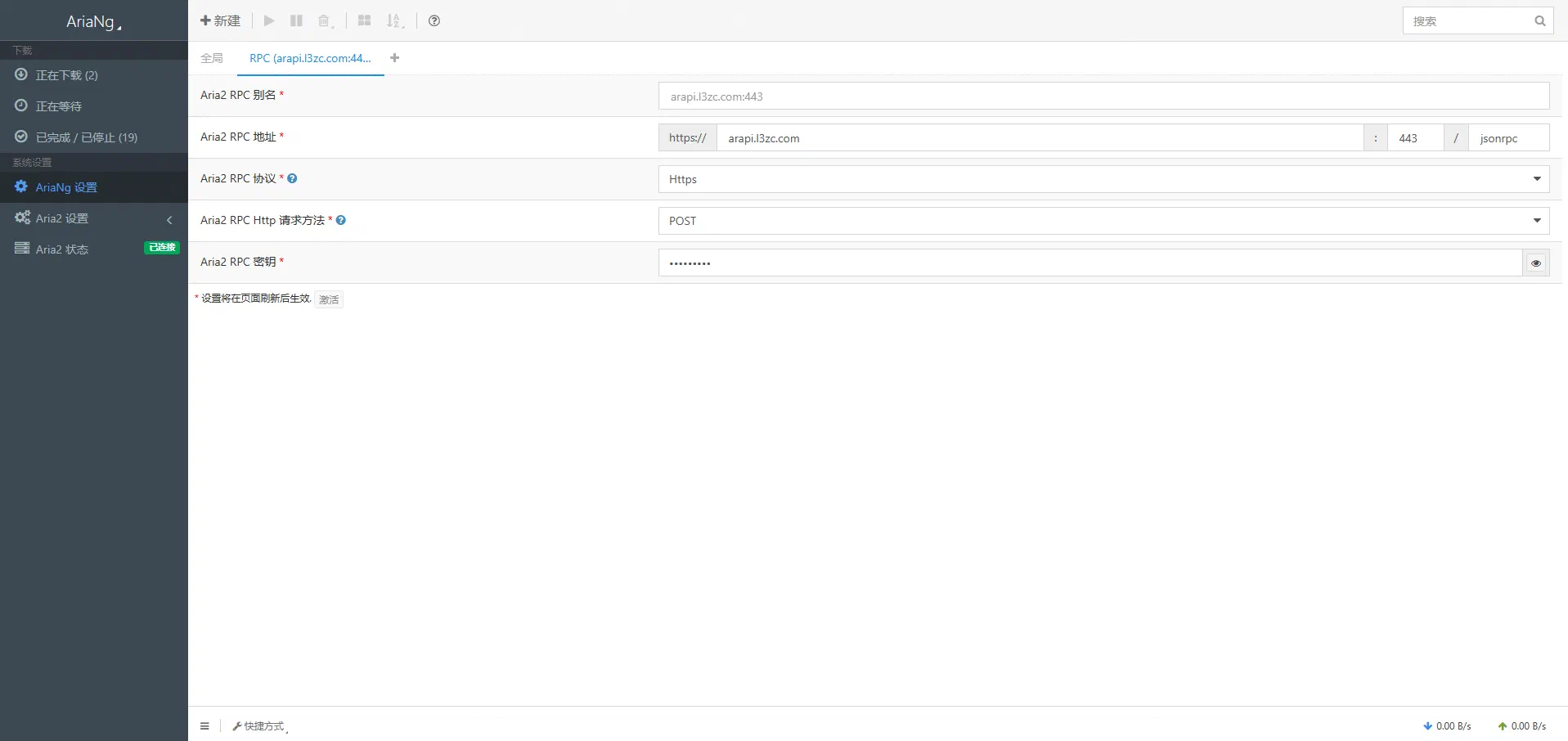
Among them, the RPC Address is the reverse-proxied RPC address you just set up, select HTTPS for the Protocol, POST for the Request Method, and the RPC Secret is the value you replaced at replace-me in docker-compose.yml.
If ‘Connected’ appears next to ‘Aria2 Status’, the configuration is correct.
Map Download Directory with Alist
We map the download directory via Alist to view, manage, and download files already on the server more conveniently. Alist is also deployed via Docker. Since Alist itself runs inside a container, it cannot access files outside the container; during deployment, you need to bind Aria2’s download directory to the Alist container beforehand.
My docker-compose.yml is as follows:
| |
When starting Alist for the first time, it will randomly generate a password for the admin user. Therefore, when starting this orchestration for the first time, it is best not to use the -d parameter, but rather directly use docker compose up, and save the container’s startup output carefully. If you accidentally didn’t save the admin password, you can use this command to randomly generate a new one:
| |
After successfully logging into Alist, you can start mounting the directory.
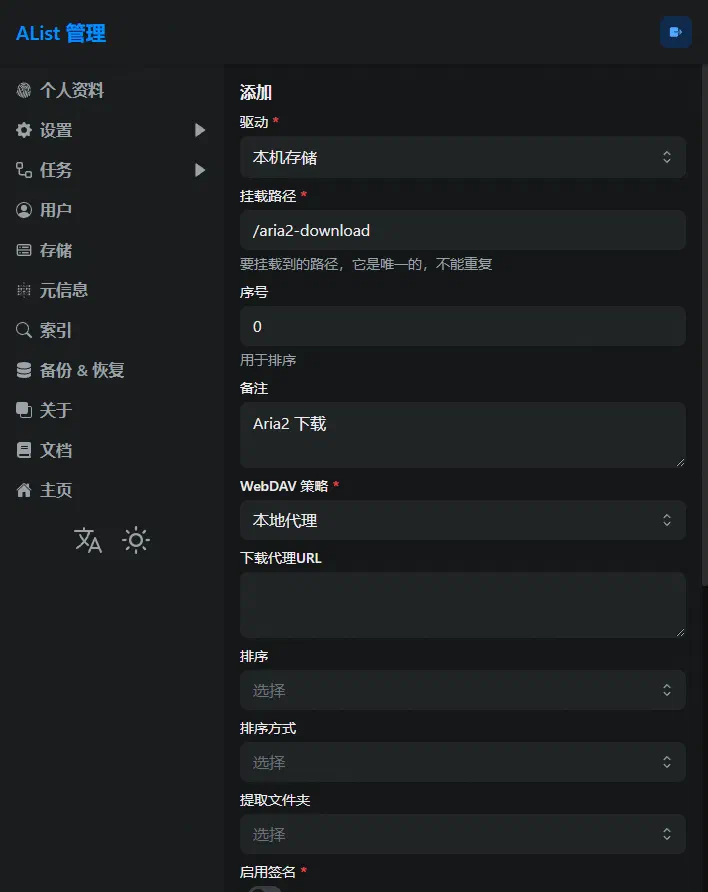
Select ‘Local Storage’ for the driver. Note the mount path; according to my orchestration, I mounted the /home/azureuser/aria2/aria2-downloads directory outside the container to /aria2-downloads inside the container, so the mount path should be /aria2-downloads.
Completion
Now all services are deployed and online. Open AriaNG to add download tasks; downloaded files can be viewed, downloaded, and even streamed online via Alist.
Before setting up this service, please carefully check your VPS provider’s Terms of Service to ensure that BT downloading does not violate them. Furthermore, aside from a few countries/regions like Luxembourg, downloading resources protected by DMCA may lead to complaints; you must bear these risks yourself.
Anyway, this Azure student VM of mine is essentially free; if it gets reclaimed due to a complaint, I don’t really care. Regardless, now I can enjoy the pleasure of finding resources without distraction.
Of course, you can also try SuperNG6/docker-aria2 ↩︎
Reference the original author’s
docker-compose.yml↩︎caddy stopandcaddy start, refer to Caddy Documentation ↩︎
Comments are disabled until you accept functional cookies.